On the watch

Run the whole match from your wrist.

Big clocks and few taps, made to read at a glance mid-match. The watch runs the match by itself, with or without a phone, and syncs when it can.

Every clock you keep

The match clock, added time once the period's length is up, and a stoppage clock you start and stop with one press. Turn stoppage tracking off for matches where you don't keep it, and the screen keeps to what you use.

Try them in a match

  • A halfway break for drinks or cooling, due at the middle of each period and counted down, and added on as stoppage if you like.
  • A clock that stops, for high school (NFHS) and college (NCAA) games where you keep the time: set the format's Clock to Stops when play stops and Start/Stop stops the match clock, which turns orange, and starts it again at the restart. Recording a goal or card stops it too (you can turn that off), as does an injury and the halfway break. There's no added time: the period ends when its clock reaches the length, and the times in your report are the clock's. The high school and college formats are ready to pick when you set up a match.
  • Half-time and the break between periods, counting down or up.
  • Halves, quarters, three periods or one: a tournament game of a single period has no half-time, and extra time and penalties still follow it.
  • The added time left: once the period's length is up, the stoppage pill counts down the added time still to play, holding still while you stop for more, so there's no sum to do in your head. At 0:00 the watch vibrates; past it the pill shows the time over, "+0:05".
  • Vibrations at the end of each period, when the added time is used up, when a break is due and as a stoppage reminder, each one you can switch off. With stoppage tracked, the end of the period is one buzz, as added time starts; the one that says added time is up repeats until you press a button. With no stoppage time to add, the end of the period repeats until you press a button instead.
  • Clocks that keep time even if the screen sleeps or the app closes mid-match: they're worked out from when the period started, not counted.
  • Adjust clock in the game menu, for a clock started late or one that must match the stadium's: set the period's minutes and seconds, check the change ("+0:40") and every clock, alert and break moves with it. With stoppage tracked, Adjust added time corrects a stoppage started or ended late. Both show in the match's events and the report.
  • Suspend match for a lightning or weather delay: every clock stops where it is, the Suspended screen counts how long it's been, and for lightning a 30-minute countdown that Lightning again starts over, with a vibration when it's done. Cards can still be shown; Resume carries the period on from where it stopped, so the delay is neither played time nor added time. It shows in the match's events and the report ("Suspended 34:12 · Lightning"), and your distance and speeds leave it out. If play can't restart, abandon from there.
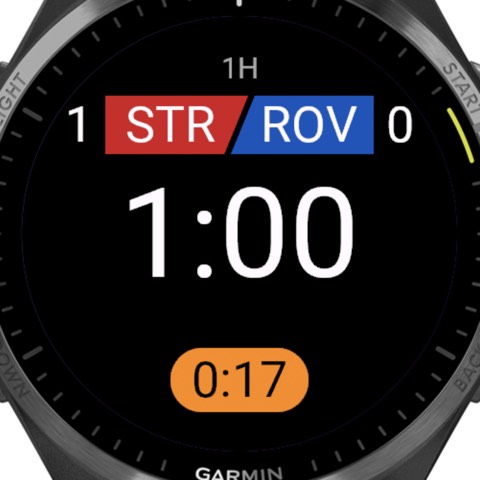
LawFive on a Garmin watch: the teams in their colors, the score, the match clock and a running stoppage

Your match screen, your way

Build what the watch shows while a period runs, a step at a time, on the website, either phone or the watch's Settings:

  • One clock or two, stacked or side by side.
  • How each counts: Match time (0 to 90, like TV), each half from 0, or time left (45 down to 0).
  • A ring that fills as the period runs, or the time of day at the bottom.
  • Team names or just the score, with a bigger clock.

Pictures of the screen follow along: pick a moment of a match, or play one through from kickoff to full time. Try it below, then try a match with it on the watch.

Set up on the website, Android and iPhone; on Garmin, Wear OS and Apple Watch

The match screen setup: how each clock counts, beside pictures of the screen in added time

Goals and cards

A goal or a card takes a few taps, with the player's number and the time it happened. A second yellow for the same number becomes a red by itself. Turn on goal types (penalty, direct free kick, own goal) when you report them, or turn off scorers for a goal in one tap. A goal, card or injury recorded by mistake can be undone from the game menu while its period is on, or at the break after it; the period's end comes first in that menu, as it's the row you need every match.

A team official's card is there too, with whether it was the head coach, an assistant or another official. An injury goes in with the player's number, and starts the stoppage clock when you track stoppage, so the time it takes is added on.

Where your competition uses sin bins, turn on Sin bins in the match's format, with their length (10 minutes unless you change it). Sin bin is then in the team menu, just above the yellow card. The player's time runs with the match clock, so it waits through half-time and any delay and carries into the next half, and with stoppage tracked it holds while you stop for a stoppage, as IFAB's guidance has you add the time lost; a pill shows it ("AWY 7 4:12"). When it's up, the watch vibrates and says "AWY #7 can return" until you press a button. A second sin bin for the same number is a send-off; a sin bin and a caution don't add up to one. Both show in the match's events, the report and your discipline stats.

To give each card its reason as you go, turn on Card reasons in the watch's Settings, under Controls. After the player's number, or the official's role, the watch lists your misconduct codes (US Soccer's, The FA's or the Laws of the Game's, as you've chosen for your account or the match's competition), each with a few words: "UB, Unsporting behavior". No reason comes first, so one press skips it, and you can add the code afterwards. The code goes on your match report. It's off unless you turn it on, as it's one more step during play.

Cards can be shown before kickoff, at half-time and after full time too, and a match that can't finish can be abandoned with its reason, keeping the score.

Rain and sleeves can set a touch screen off. On a Forerunner, fēnix or epix, turn on Touch lock in the watch's Settings, under Controls: during play the screen then takes no taps or swipes, and the five buttons run everything. On Apple Watch, the same setting turns on the watch's own Water Lock whenever play's screen shows; turn the Digital Crown to unlock it.

Kickoff, the toss and the ends

Coin toss on the watch for a forgotten coin, before kickoff, extra time and penalties. Kickoff direction: face the goal the kickoff team attacks and save it, and at each later kickoff an arrow turns with you to point the way that team attacks. Extra time has its own toss, so you pick its kickoff team and save its direction again.

Kickoff direction on watches with a compass

Extra time, penalties and golden goal

When the last period ends level, the watch offers extra time or penalties, and End match when there's a winner. Extra time is its own periods with the same clocks. In a shoot-out, tap Scored or Missed for each kick; the watch keeps the tally and calls the winner, sudden death included. Golden goal ends extra time on the first goal, with Undo in case it's disallowed.

Try one: the tour ends with a cup match

Your matches, synced

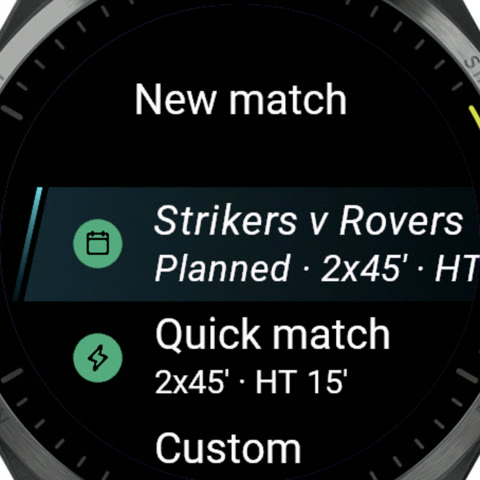
Link the watch to your account and your next matches are on it, with the teams, their colors, the format and the forecast, ready to start. At full time the match goes up to your account with its events, your track and the distance you ran. Mark a fee paid from the watch, even without a connection. A quick match works without an account at all.

Where you ran

The watch's New match menu: a planned match, Strikers v Rovers, above Quick match and Custom

Which watches

Garmin, in testing, on its way to the Connect IQ Store:

  • Forerunner 265, 265S and 965
  • fēnix 7, 7S and 7X, and their Pro editions
  • fēnix 8 (43 and 47 mm, Pro and Solar)
  • epix (Gen 2) and epix Pro
  • Venu 2, 2S and 2 Plus
  • Venu 3, 3S, Venu 4 and Venu X1

Every watch also records your GPS track and heart rate (Record track, in the watch's Settings), and marks the pitch's corners. Wear OS and Apple Watch are in early testing, syncing over the watch's own connection; an Apple Watch saves each match to Apple Health as a soccer workout, and from a Wear OS watch the Android app saves it to Health Connect. The first time the app opens, it says what it asks for and why (your location for the track and the kickoff direction, your heart rate for the workout), before the watch asks, so nothing asks between Start match and the kickoff.

Find out more

More of what it does

Want to try it?

Make an account, and we'll email you once it's approved. Already have one? Sign in on the web.